OfficeCLI Deep Dive: Control Word, Excel and PowerPoint from the Command Line
For AI agents, Office files have always been the most painful part: the format is ZIP plus XML, binary, often tens of megabytes, and most people end up patching with narrow libraries like python-docx or openpyxl. The result is ten lines of code to change one font size, and no idea whether the layout survived.
OfficeCLI flips the problem around: instead of teaching the AI OOXML, it provides a stable, queryable, batchable, JSON-friendly command surface. You (or the agent) only say "which position, which property", and the tool handles the rest. This guide is based on the tested version officecli v1.0.156, walking through each layer with real rendered screenshots.
Why "CLI-ify" Office?
Three design decisions make it especially suited to agents:
- Single binary: no Microsoft Office install, no Python dependency;
- Schema-driven: property names and value formats can be queried, not memorized;
- Three-layer fallback: when a high layer can't express something, drop to a lower one — there is always an escape hatch.
For an agent, the most valuable part is verifiability: every step can be read back with get and checked with validate, instead of editing blindly and praying the file still opens. For the command-line basics, read Terminal, Shell, CLI: The Difference Between the Three Terms, and Ten Survival Commands first.
Install and Verify
curl -fsSL https://d.officecli.ai/install.sh | bash
officecli --version
If the command is not found afterwards, open a new terminal so the PATH takes effect. --version should print 1.0.156.
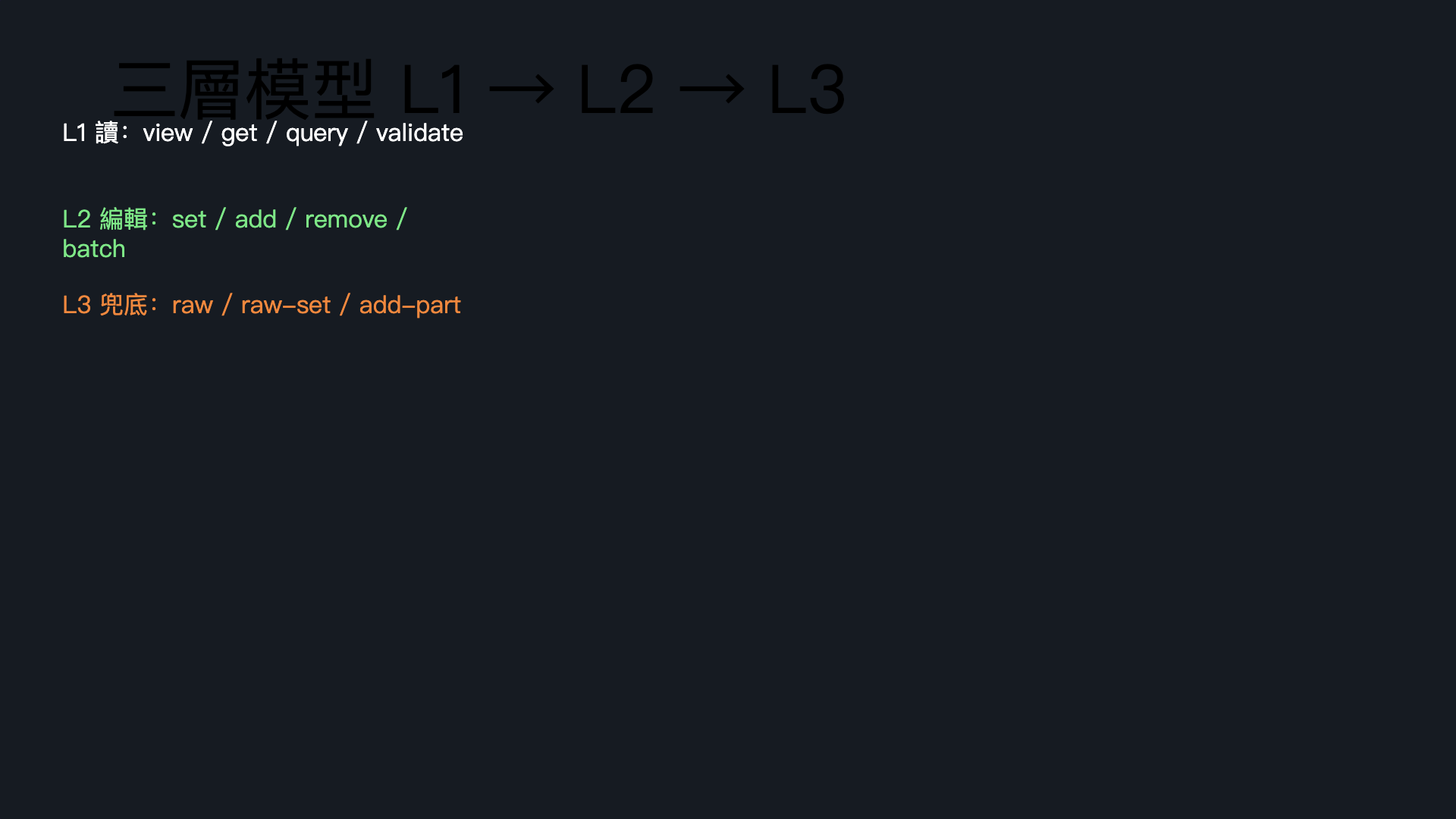
The Three-Layer Model: L1 Read → L2 Edit → L3 Raw XML
The official advice is to always use the highest layer first, dropping down only when it cannot express what you want. This fallback ladder is the backbone of the whole tool:
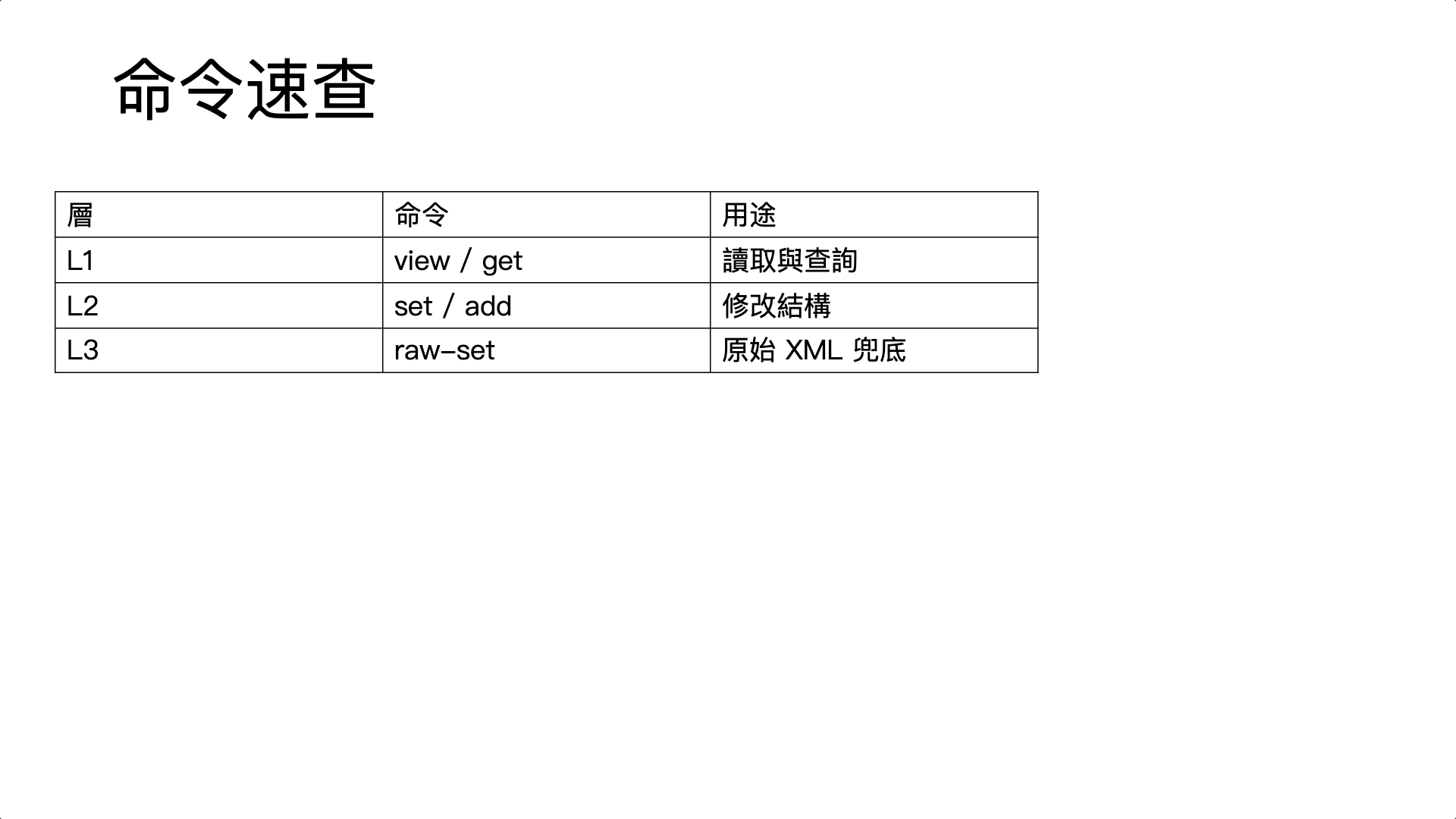
| Layer | Purpose | Representative commands |
|---|---|---|
| L1 | Create, view, query, validate | create view get query validate |
| L2 | Edit properties, add/remove/move, batch | set add remove move swap batch |
| L3 | Escape hatch when L2 can't express it | raw raw-set add-part |
officecli create report.docx        # L1: create
officecli view report.docx outline  # L1: view the outline
officecli set report.docx /body/p[1] --prop bold=true   # L2: edit
officecli raw report.docx /document # L3: inspect raw XML
In Practice: Three File Types, Three Paths
4.1 PowerPoint: Build a Slide from Scratch
officecli create slides.pptx
officecli add slides.pptx /slide[1] --type shape --prop text="Q4 Report" --prop size=24
officecli set slides.pptx '/slide[1]/shape[1]' --prop fill=1A1A2E
Note: quote /slide[1], otherwise zsh expands the brackets as a glob. Shape properties can be looked up with officecli help pptx shape — no guessing.
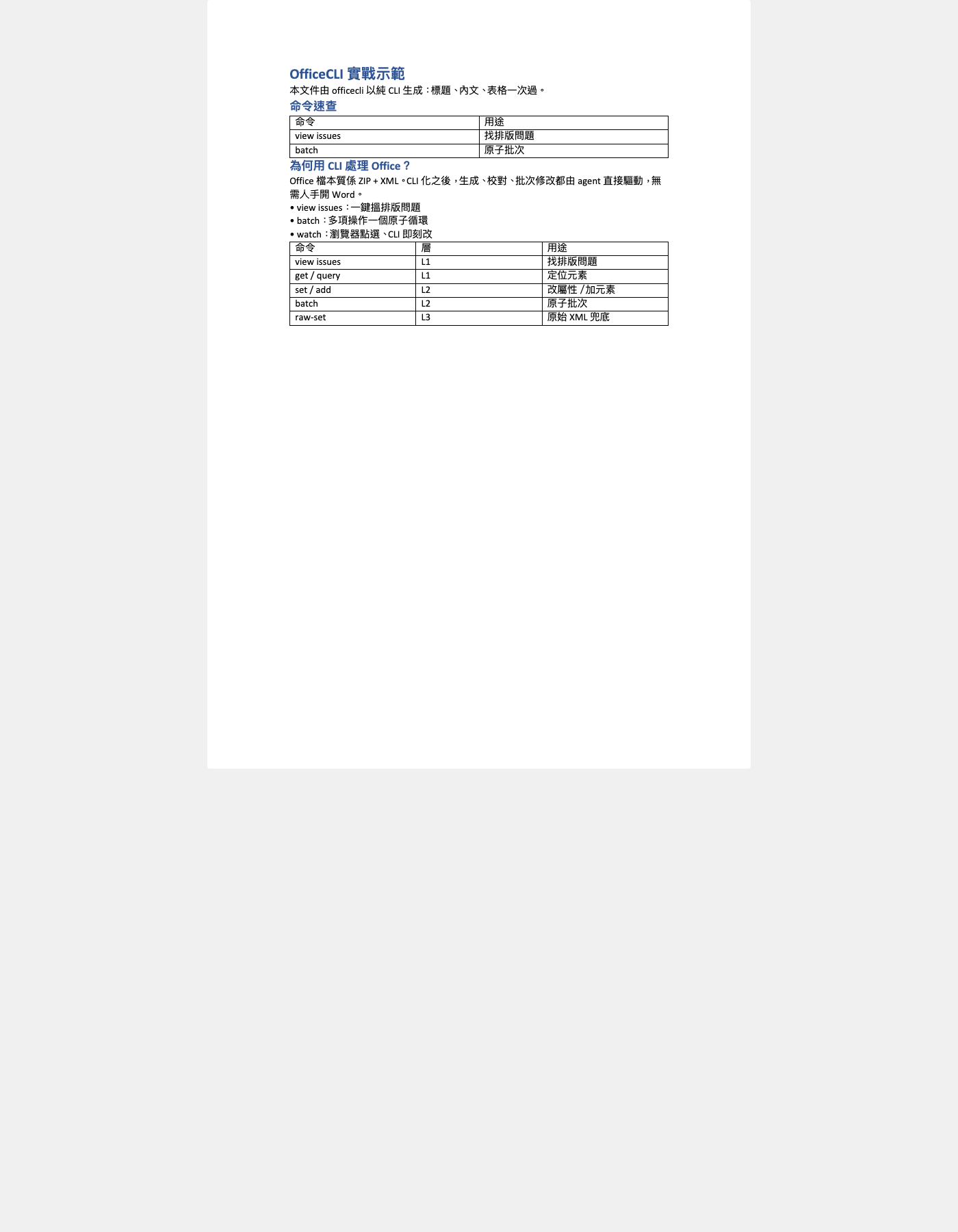
4.2 Word: Paragraphs and Styles
officecli create report.docx
officecli add report.docx /body --type paragraph --prop text="Executive Summary" --prop style=Heading1
officecli add report.docx /body --type paragraph --prop text="Revenue increased by 25% year-over-year."
4.3 Excel: Write Cells by Path
officecli create data.xlsx
officecli set data.xlsx /Sheet1/A1 --prop value="Name" --prop bold=true
officecli set data.xlsx /Sheet1/A2 --prop value="Alice"
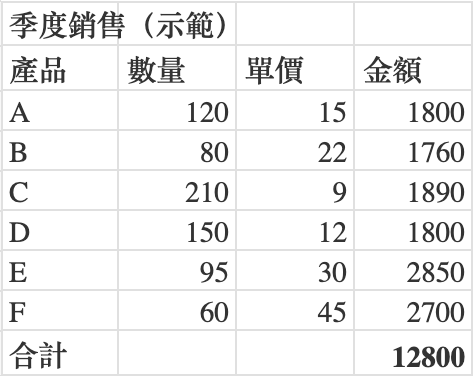
.xlsx cells are written directly by path such as /Sheet1/A1; the formula property writes a formula (without the equals sign) and numberformat sets the format code.
Resident Mode: The Performance Key
The first command of any session automatically starts a resident (idle for about 60 seconds before it shuts down), avoiding repeated open/close of the file. Long sessions can control it explicitly:
officecli open report.docx
officecli set report.docx /body/p[1] --prop align=center
officecli save report.docx
officecli close report.docx
You only need save or close before handing the file to a non-officecli program (python-docx, Word, upload); officecli's own reads always see the latest edits.
Batch and Watch: Atomic Commits and Interactive Edits
6.1 Batch = Atomic
Multiple operations are submitted in one pass, atomic by default: if any item fails, the whole batch rolls back and the file stays byte-identical.
echo '[
  {"command":"set","path":"/Sheet1/A1","props":{"value":"Done"}},
  {"command":"set","path":"/Sheet1/B1","props":{"value":"OK"}}
]' | officecli batch data.xlsx --json
Add --best-effort to keep whatever succeeds; officecli dump can output a replayable batch JSON for a perfect round-trip.
6.2 Watch: You Click, AI Edits
watch starts an auto-refreshing HTML preview (default port 26315). You click shapes in the browser, and the CLI reads the current selection to act on it:
officecli watch deck.pptx
officecli get deck.pptx selected --json
Selections are represented with stable IDs (@id=), so they stay valid after edits.
Skills and MCP Integration
Reports, papers, pitch decks, financial models and dashboards each have their own conventions. List the available skills first, then install what you need:
officecli skills list
officecli skills install pitch-deck
| Format | Skills | When to use |
|---|---|---|
| Word | word / academic-paper | Reports and letters / papers (APA, cross-references) |
| PPT | pptx / pitch-deck / morph-ppt | General decks / fundraising / Morph animations |
| Excel | excel / financial-model / data-dashboard | General / financial models / KPI dashboards |
For MCP, officecli mcp starts the stdio server and officecli mcp <target> registers with a client. The MCP tool exposes a single command argument that is passed to the CLI verbatim:
{ "command": "set report.docx /body/p[1] --prop bold=true" }
Five Common Mistakes
| Pitfall | Fix |
|---|---|
--name "foo" | All properties go through --prop name=value |
Typing /slide[1] directly in zsh | Quote it: '/slide[1]', or the glob explodes |
Using shape[1] as content | shape[1] is usually the title placeholder; content starts at shape[2] |
| Guessing property names | officecli help docx paragraph |
--prop text="$15M" | $ is eaten by the shell — wrap it in single quotes |
Next Steps
- Generation side: images and multimodal assets with ArtCraft Deep Dive: The AI-Generation App (macOS) and Where It Fits;
- Layout side: bleed, columns and IDML publishing with DesignCraft Deep Dive: Layout and Publishing with designcraft-cli;
- Wiring it into an agent:
officecli installsets up the binary, skills and MCP in one step, then read OpenClaw Installation Guide: One Command to Your Own AI Agent Gateway to set up the Gateway too.